



You don’t need “more sliders.” You need the right order. Most good photography edits follow the same flow: you make the photo technically solid first, then you make it beautiful.
Quick answer (the order that works): Choose your software and hardware around the way you like to work then start with exposure (histogram) → fix white balance -> add contrast → refine saturation
Before you even start editing, there’s one step that quietly makes everything easier: having your photo library organized. When your images are scattered across folders, drives, or catalogs, editing becomes reactive instead of intentional. Tools like Peakto help you bring all your photos together, so you start editing from a place of clarity—choosing the right images first, then editing them with purpose.
Software & Hardware: Start With What Fits Your Needs

For most beginners, photo editing starts with two questions: Which software should I use? and Is my computer good enough? That instinct is normal—but the goal isn’t to find “the best” tools. It’s to choose tools that match how you want to work, so learning stays smooth instead of frustrating. Most modern photo editing software can deliver excellent results.
What matters is alignment:
- simple RAW corrections vs. all-in-one organization,
- speed and clarity vs. advanced layers and composites.
Rather than chasing feature lists, it helps to understand why professionals choose certain tools and what problems those tools solve if you are seeking for the top photo editing software used by professionals. Hardware follows the same logic. Performance should feel fluid with RAW files, your screen should be consistent enough to trust exposure and color, and storage should keep your work safe.
To choose the best computer for photo editing you don’t need to seek for extreme specs—just a setup that doesn’t get in the way.
Once you’ve made these choices, stop thinking about tools. They should fade into the background—so you can focus on the workflow that actually makes your edits better.
Exposure First: Why the Histogram Is Your Safest Starting Point
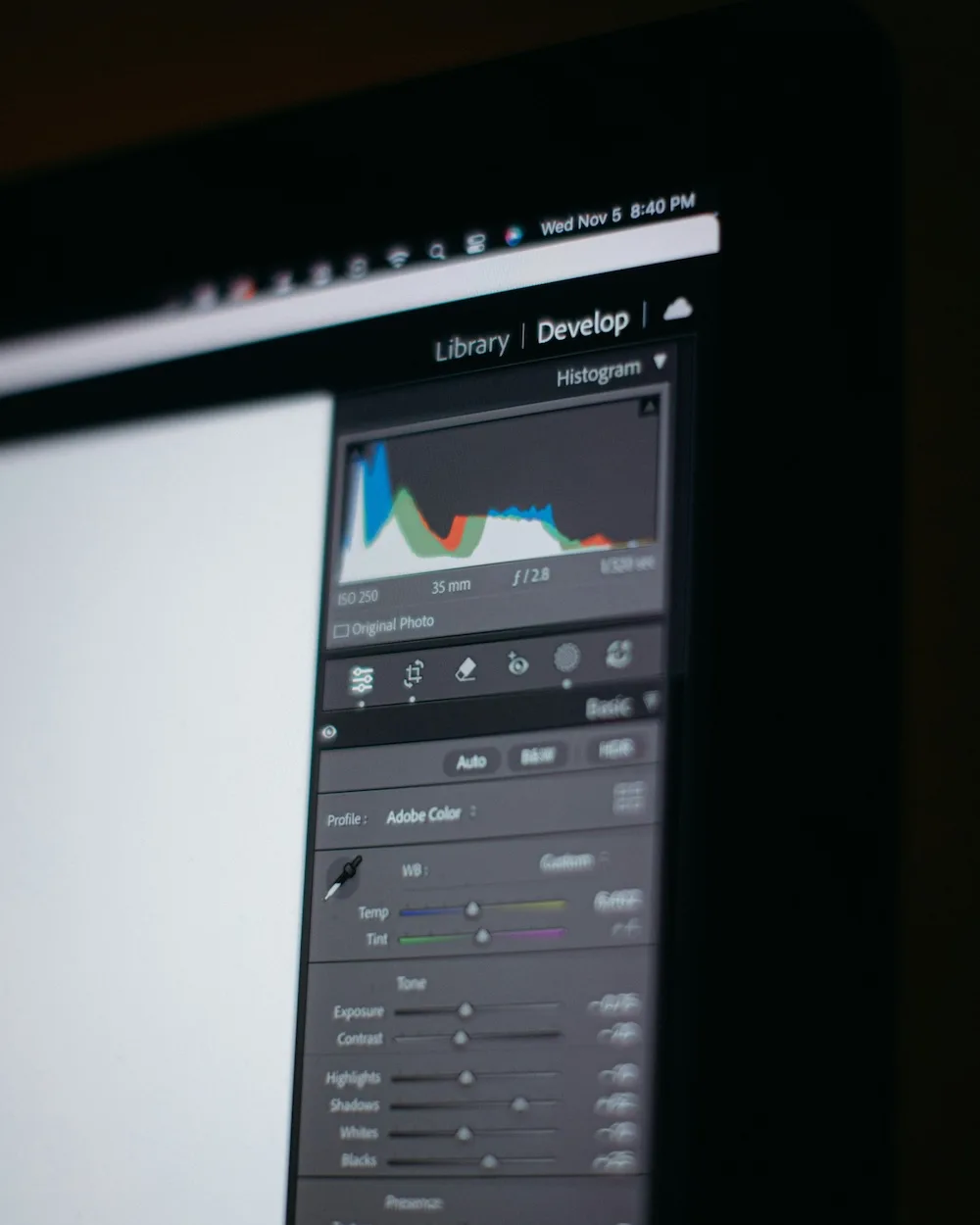
If you’ve ever edited a photo that looked “fine” on screen but weird elsewhere, you’ve met the problem: screens lie. That’s why histogram in photography is the best place to begin.
Adobe describes the histogram as a way to “view brightness levels, tones, and color intensity all in one place,” which makes it a reliable exposure check when your eyes get fooled by ambient light.
A beginner-friendly way to use it: treat the histogram like a safety rail. If your tones are crushed against the far right, you’re likely losing highlight detail; if they’re crushed on the far left, shadows may be getting blocked up. You don’t need perfection—just a clean foundation so the rest of your edits don’t become a fight.
Two habits that pay off immediately:
- Keep toggling before/after while you edit (your eyes adapt fast).
- Fix exposure before you touch “style” (presets, color looks, heavy saturation).

White Balance: The Invisible Fix Behind Natural-Looking Photos
White balance editing is the quiet foundation of believable edits. If it’s wrong, your contrast and saturation choices will keep drifting because you’re correcting symptoms instead of the cause. A reliable, technical framing is that white balance ensures colors are captured in correlation to the light source.
The quickest beginner method is to look for something that should be neutral—paper, a wall, a shirt, a highlight on metal—and adjust temperature and tint until it feels neutral again. Once neutrals look right, you can warm the image for mood or cool it for atmosphere, but it’s a decision instead of an accident.
Contrast With Intention: How to Add Depth Without Overdoing It
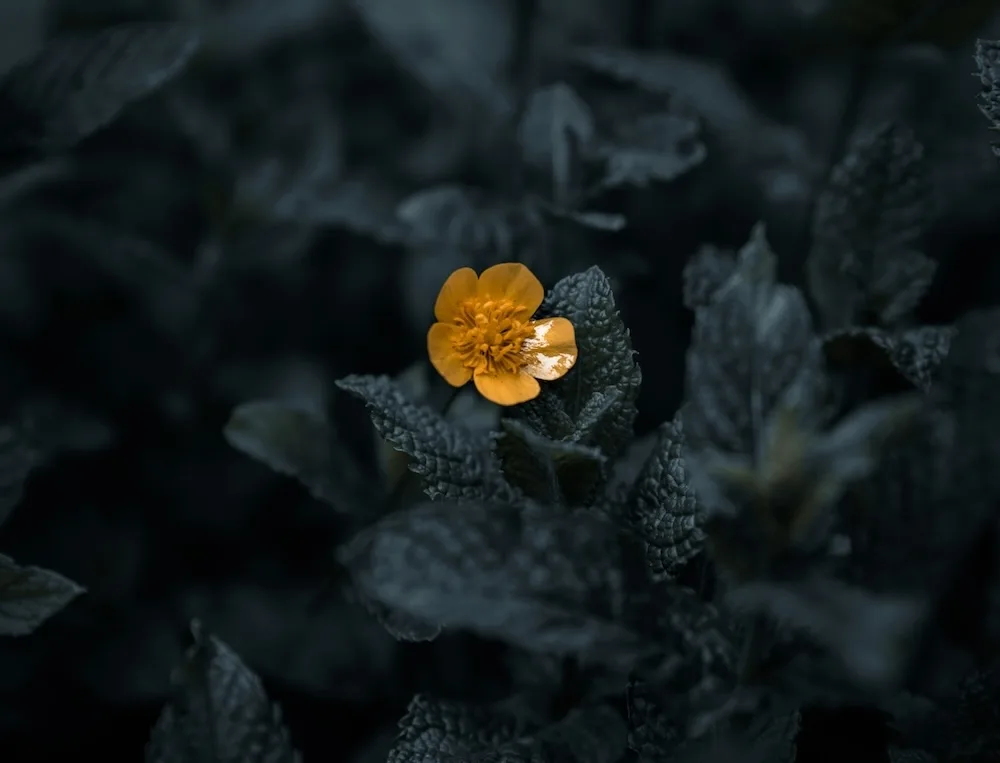
Contrast editing sits after exposure and white balance: it’s the quickest way to make an image feel intentional instead of flat.. In plain terms, contrast is “the difference between dark and light…areas” in photographs, as Cambridge Dictionary puts it.
The mistake beginners make is pushing contrast everywhere. A better mental model is: contrast decides what feels crisp and what feels soft. If portraits start looking gritty or landscapes start looking noisy, you’re not “bad at editing”—you’ve probably pushed global contrast or clarity too far. Pull back until the image feels natural again, then add only what you actually need.
Saturation as a Finishing Touch, Not a Shortcut

Saturation is tempting because it feels like instant improvement. But it’s also the fastest way to make images look artificial. Adobe defines saturation as color intensity, which is exactly why it needs restraint and this YouTube vidéo explains it well. Mastering saturation in photography teaches you to push color without “overcooking” the photo.
A simple workflow tip: don’t touch saturation until exposure and contrast are stable. When you do, use the smallest moves possible, then check skin tones and anything neutral (white/gray). If those look strange, saturation isn’t the fix—white balance usually is.
A Solid Workflow Is What Makes Progress Possible
Good photo editing isn’t about mastering every tool or collecting techniques. It’s about building a clear, repeatable workflow you can rely on—no matter the photo, the software, or your level.
By starting with exposure, then shaping contrast, correcting white balance, and refining color last, you stop guessing and start making deliberate choices. Editing becomes faster, calmer, and far more consistent.
At some point—whether you’re a beginner gaining confidence or a professional refining your style—you’ll want more than the basics. Not more sliders, but better judgment, sharper decisions, and a stronger visual language.
That’s where going further makes sense. Our pro tips for photo editing are designed to help you deepen this foundation: refine your eye, adapt your workflow to real-world projects, and push your images further—without losing control of the process.
FAQ - Photo Editing Basics
What is the difference between Saturation and Vibrance in photo editing?
Saturation increases the intensity of every color in your photo uniformly, which can sometimes lead to “clipping” or unnatural looks. Vibrance is a smarter tool; it primarily targets the more muted colors in the image while protecting skin tones and colors that are already saturated. For portraits, it’s almost always better to adjust Vibrance first.
Why is editing in RAW format better than JPEG for beginners?
A RAW file contains all the data captured by your camera sensor without any processing, giving you maximum flexibility to recover shadows and highlights. A JPEG is already compressed and processed by the camera, meaning much of the original data is discarded. Editing a RAW file is like cooking with fresh ingredients; editing a JPEG is like trying to un-season a dish that’s already been cooked.
What is the best logical order (workflow) for editing a photo?
To avoid over-processing, follow this standard workflow:
- Exposure & Contrast: Fix the brightness and dynamic range first.
- White Balance: Correct the color temperature to ensure whites look neutral.
- Cropping & Straightening: Clean up the composition.
- Color Adjustments: Fine-tune Saturation, Vibrance, and HSL (Hue/Saturation/Luminance).
- Sharpening & Noise Reduction: Apply these last to avoid artifacts.