


Now that you’ve read photo editing basics, it’s time to learn about histogram in photography shows how brightness is distributed in an image, from shadows to highlights. It helps photographers read exposure objectively, detect clipping, and make reliable decisions without trusting screen brightness.
If you’ve ever wondered why a photo looks fine on your screen but wrong elsewhere, learning how to read a histogram in photography is the fastest way to stop guessing exposure.
This guide is written for beginners and advancing photographers who want a clear, practical explanation of histograms—without technical overload.
What Is a Histogram in Photography
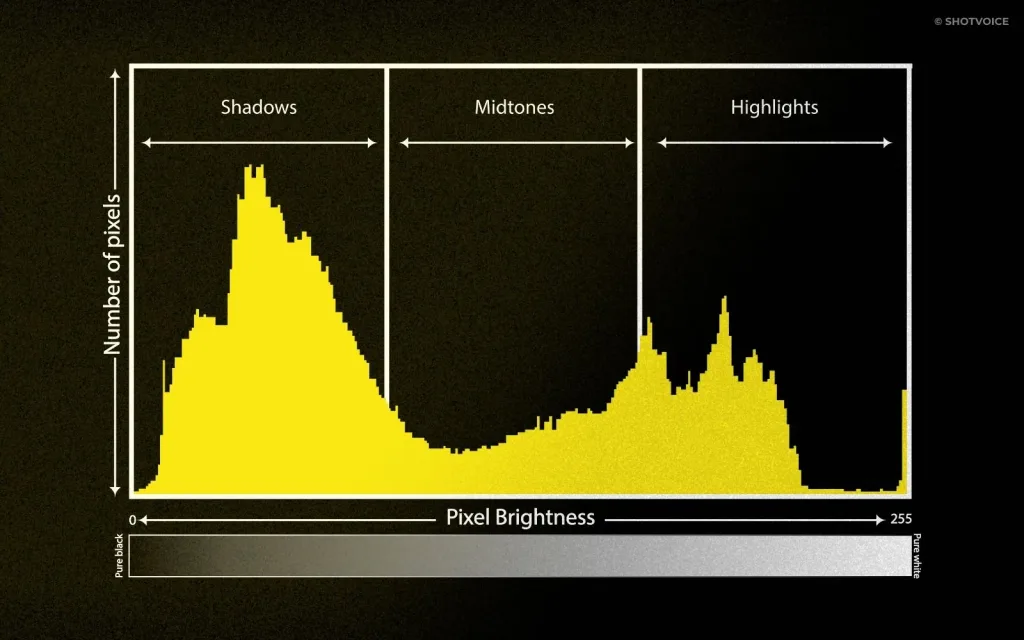
A histogram is a graph of tonal distribution.
- Left side: shadows
- Middle: midtones
- Right side: highlights
- Height: number of pixels at each brightness level
In simple terms, it shows where the light information lives in your photo.
It doesn’t tell you whether a photo is good or bad, well composed, or emotionally strong. It simply reports data. That’s why the histogram is often the first technical reference photographers rely on before moving into broader editing basics, where exposure becomes part of a complete workflow.
Why the Histogram is More Reliable Than Your Ycreen
Screens are subjective.
Brightness settings, ambient light, reflections, viewing angle, and calibration all affect perception. The same image can look correctly exposed on one screen and clearly off on another.
The histogram doesn’t change.
That’s why Adobe describes the histogram as a way to view brightness levels, tones, and color intensity all in one place. Professional photographers rely on it daily because data stays consistent when perception doesn’t.

How to Read a Histogram: Start with Clipping
When learning how to read a histogram, focus first on clipping.
- Data pressed against the right edge → highlight clipping
- Data crushed against the left edge → shadow clipping
Clipping means tonal information is lost and cannot be recovered.
That doesn’t automatically make it a mistake. Some scenes are meant to clip. The histogram simply shows whereinformation is missing, so later adjustments—whether in contrast editing or color correction—are made knowingly, not blindly.
Is There a Perfect Histogram?
No—and this is one of the most important ideas to understand.
- Snow scenes naturally push right
- Night scenes naturally push left
- High-contrast scenes spread across the full range
A balanced histogram is not a goal. The histogram should match the scene and intent, not an abstract shape. This becomes clearer once you understand how tonal distribution affects image structure through contrast editing.
Think of the histogram as a safety rail, not a target.
How to Use the Histogram While Shooting ?

Most cameras display a histogram during image review and sometimes in live view.
Key In-Field Strategies:
Trust the Graph, Not the Screen: Use Live View histograms to monitor exposure in real-time. This prevents “exposure creep” where you inadvertently overcompensate for a screen that is set too bright or too dim.
Protect the Highlights: This is the golden rule of digital photography. Ensure the graph doesn’t “climb the wall” on the far right. Once highlights are clipped (blown out), that data is lost forever and cannot be recovered in post.
Expose to the Right (ETTR): When shooting in high contrast, try to push the “mountain” as far to the right as possible without touching the edge. This captures the maximum amount of signal and minimizes digital noise in the shadows.
Early Detection: Identifying a “crushed” (all black) or “blown” (all white) file immediately allows you to adjust your ISO, aperture, or shutter speed on the spot, ensuring your raw files are optimized for the editing suite.
How to Use the Histogram When Reviewing Photos
The histogram is arguably more powerful during the review phase than it is in the field. While the camera’s LCD screen can be misleading due to brightness settings or ambient sunlight, the histogram provides an objective “map” of your data.
1. Assessing Technical Exposure (The “Clipping” Check)
Reviewing the histogram tells you immediately if you have “blown out” highlights or “crushed” shadows.
- The Goal: Ensure the “mountain” of data isn’t jammed against the far right (pure white) or far left (pure black) walls of the graph.
- The Tip: Look for “gaps” on either side. A gap on the right means you have room to brighten the image; a gap on the left means you have room to darken it without losing detail.
2. Identifying “Invisible” Detail
Sometimes an image looks flat or dark on screen, but the histogram reveals a wealth of information in the midtones.
- The Advice: If the histogram is tall and centered, the file contains significant detail that can be “pushed” or “pulled” in editing. This helps you spot “keepers” that might look uninspiring at first glance but have the data necessary for a high-quality edit.
3. Calculating Dynamic Range & Latitude
The histogram acts as a gauge for how much “punishment” a file can take in software like Lightroom or Capture One.
High Latitude: If the histogram is concentrated in a narrow peak (low contrast), you have massive latitude to increase contrast and saturation.
Low Latitude: If the data stretches from edge to edge (high contrast), any aggressive exposure adjustment will likely result in data loss or digital noise.
4. Setting the Workflow Priority
Photographers use the histogram to “triage” their shots. Before touching white balance editing or color grading, use the histogram to set your black and white points. By dragging the ends of the histogram until they just touch the edges of the graph, you maximize the dynamic range of the image, creating a clean canvas for color work.
Luminance vs RGB Histograms
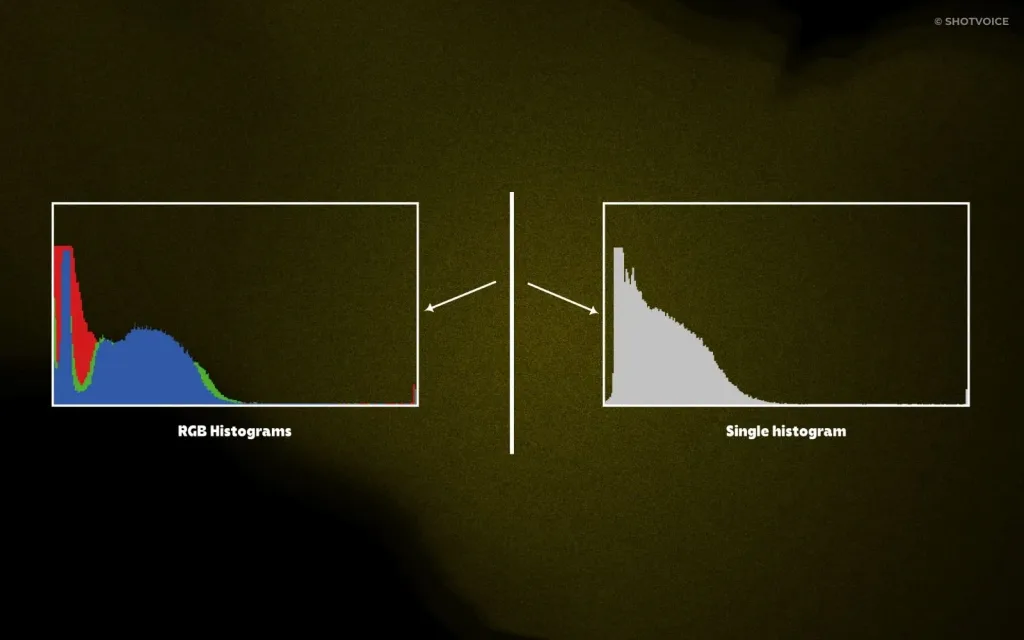
Some tools show a single (luminance) histogram, while others display RGB histograms.
RGB histograms help reveal:
- channel clipping
- color dominance
- imbalance between red, green, and blue
These indicators become especially useful when working on white balance editing or fine-tuning saturation in photography, where color accuracy depends on understanding individual channels.
When the Histogram Can Mislead You
The histogram is powerful, but it has limits.
It doesn’t know:
- which part of the image matters most
- whether clipped highlights are specular reflections
- whether a scene is intentionally high-key or low-key
This is why the histogram should guide judgment—not replace it.
Common Beginner Mistakes When Reading Histograms
- Chasing a “perfect” histogram shape
- Trusting the screen more than the data
- Ignoring clipping because the image looks fine
- Treating the histogram as a creative rule
Used correctly, the histogram supports your eye—it doesn’t override it.
Histogram is The Foundation of Confident Exposure
The histogram doesn’t make photos better by itself. What it does is remove uncertainty.
Once reading a histogram becomes instinctive, photographers naturally start connecting exposure decisions with broader editing choices, then with tool selection. That’s often when questions about top photo editing software or choosing the best computer for photo editing start to make sense.
From there, curiosity grows—leading many photographers to explore deeper pro tips for photo editing as they refine judgment and develop a consistent style.
Understanding the histogram is where clarity begins. What you build on top of it is where your photography evolves.